
Use VoIP services in Progrid with OnSIP
Important
OnSIP VoIP services are only available in the United States (US). OnSIP VoIP services are widely available in the lower-48, contiguous United States. In Alaska or Hawaii, charges for service can be higher.
Additionally, a US billing address, and US credit card are required to use the service.
Before setting up an account with OnSIP, the business will need to make sure the business telephone numbers are portable to OnSIP.
OnSIP makes every attempt to work with all telephone service providers. However, certain local or regional guidelines may preclude the company’s current provider from releasing the number.
Introduction
Progrid VoIP can be set up to work together with OnSIP (Progrid Landing Page). OnSIP is a VoIP provider. An account is needed with OnSIP in order to use this service.
Before setting up an account with OnSIP, make sure the company’s home area, and the areas that will be called, are covered by OnSIP services.
After opening an OnSIP account, follow the configuration procedure below to configure it on a Progrid database.
Configuration
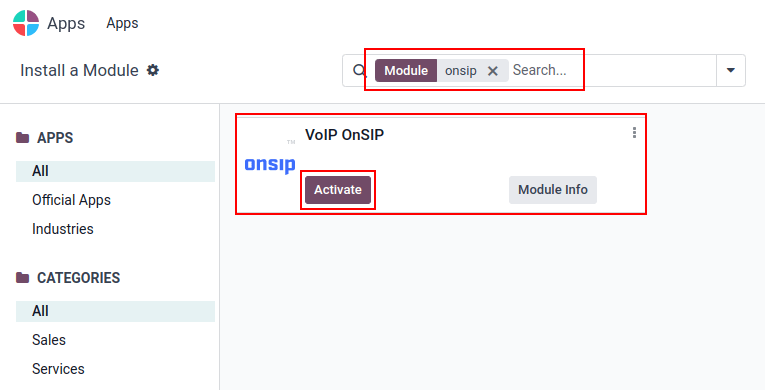
To configure the Progrid database to connect to OnSIP services, first navigate to the
from the main Progrid dashboard. Then, remove the default Apps
filter from the Search… bar, and search for OnSIP.
Next, activate the VOIP OnSIP module.
Progrid VoIP setting
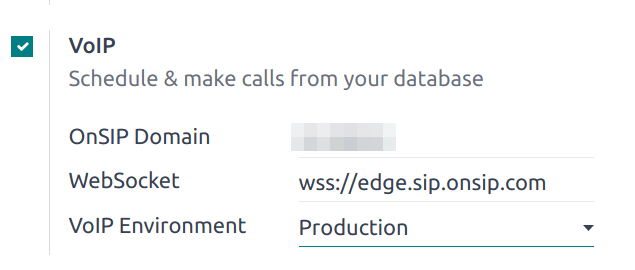
After installing the VOIP OnSIP module, go to the , scroll down to the Integrations section, and locate the VoIP fields. Then, proceed to fill in those three fields with the following information:
OnSIP Domain: the domain that was assigned when creating an account on OnSIP.
WebSocket:
wss://edge.sip.onsip.comVoIP Environment: Production
Tip
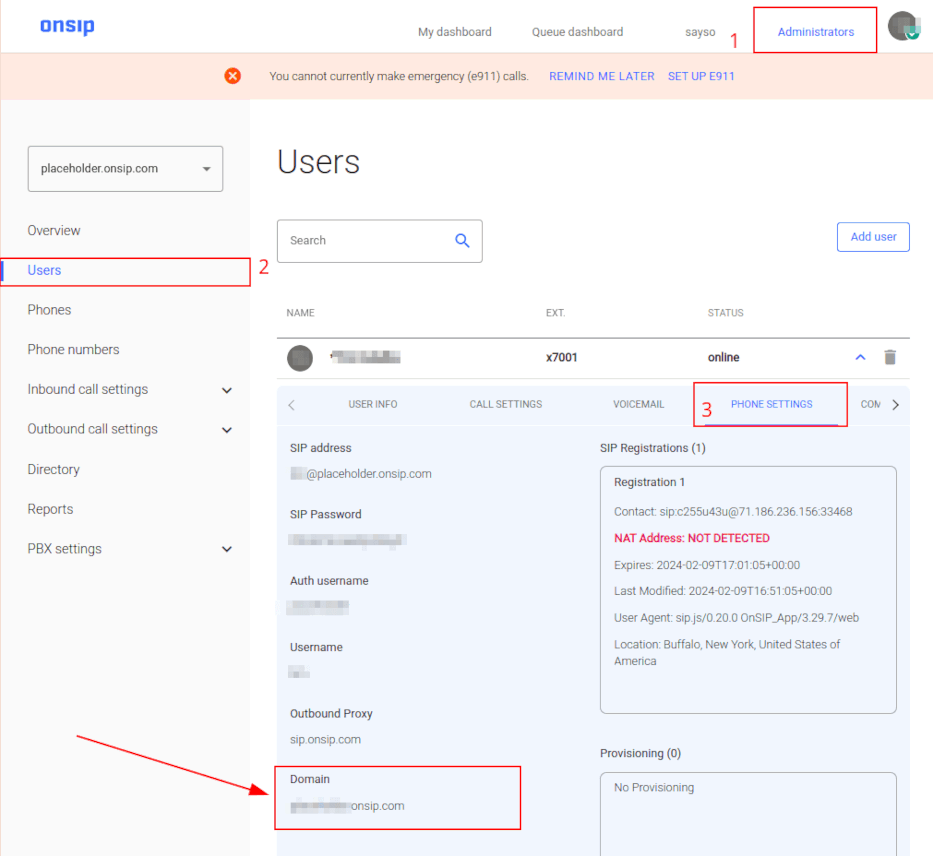
To access the OnSIP domain, navigate to OnSIP and log in. Then, click the Administrators link in the top-right of the page.
Next, in the left menu, click Users, and then select any user. By default, the selected user opens on the User Info tab.
Click on the Phone Settings tab to reveal OnSIP configuration credentials (first column).
Progrid user setting
Next, the user needs to be set up in Progrid. Every user associated with an OnSIP user must also be configured in the Progrid user’s settings/preferences.
To do that, navigate to .
On the user form, click Edit to configure the user’s OnSIP account. Then, click the Preferences tab, and scroll to the VoIP Configuration section.
In this section, fill in the fields with OnSIP credentials.
Fill in the following fields with the associated credentials listed below:
Voip Username = OnSIP Username
OnSIP Auth Username = OnSIP Auth Username
VoIP Secret = OnSIP SIP Password
Tip
The OnSIP extension can be found in the User banner line above the tabs.
When these steps are complete, navigate away from the user form in Progrid to save the configurations.
Once saved, Progrid users can make phone calls by clicking the ☎️ (phone) icon in the top-right corner of Progrid.
See also
Additional setup and troubleshooting steps can be found on OnSIP’s knowledge base.
Incoming calls
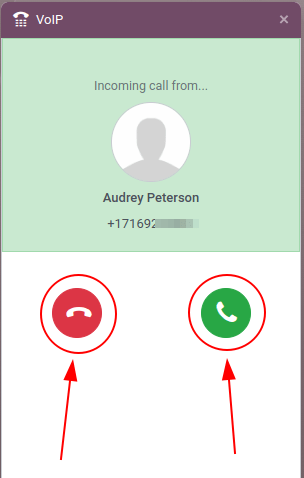
The Progrid database also receives incoming calls that produce pop-up windows in Progrid. When those call pop-up windows appear, click the green 📞 (phone) icon to answer the call.
To ignore the call, click the red 📞 (phone) icon.
See also
Troubleshooting
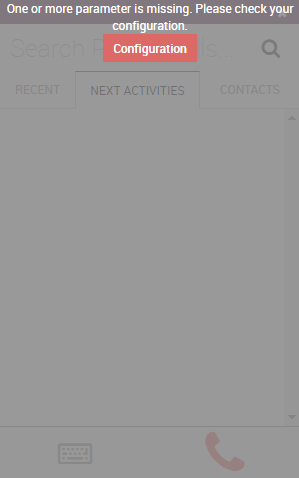
Missing parameters
If a Missing Parameters message appears in the Progrid widget, make sure to refresh the Progrid browser window (or tab), and try again.
Incorrect number
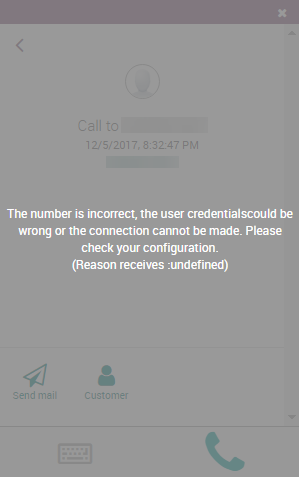
If an Incorrect Number message appears in the Progrid widget, make sure to use the international format for the number. This means leading with the international country code.
A country code is a locator code that allows access to the desired country’s phone system. The country code is dialed first, prior to the target number. Each country in the world has its own specific country code.
For example, 16505555555 (where 1 is the international prefix for the United States).
See also
For a list of comprehensive country codes, visit: https://countrycode.org.
OnSIP on mobile phone
In order to make and receive phone calls when the user is not in front of Progrid on their computer, a softphone app on a mobile phone can be used in parallel with Progrid VoIP.
This is useful for convenient, on-the-go calls, and to make sure incoming calls are heard. Any SIP softphone will work.